Memory System
Let BraceKit remember your preferences across conversations.
Memory System
The memory system allows BraceKit to remember information about you across conversations. Instead of repeating your preferences every time, the AI remembers and applies them automatically.
How It Works
- Enable memory in Settings
- Chat normally — BraceKit extracts important information
- Future conversations include relevant memories as context
When you start a new conversation, BraceKit selects relevant memories and includes them in the AI’s context, allowing personalized responses based on what it knows about you.
Setup
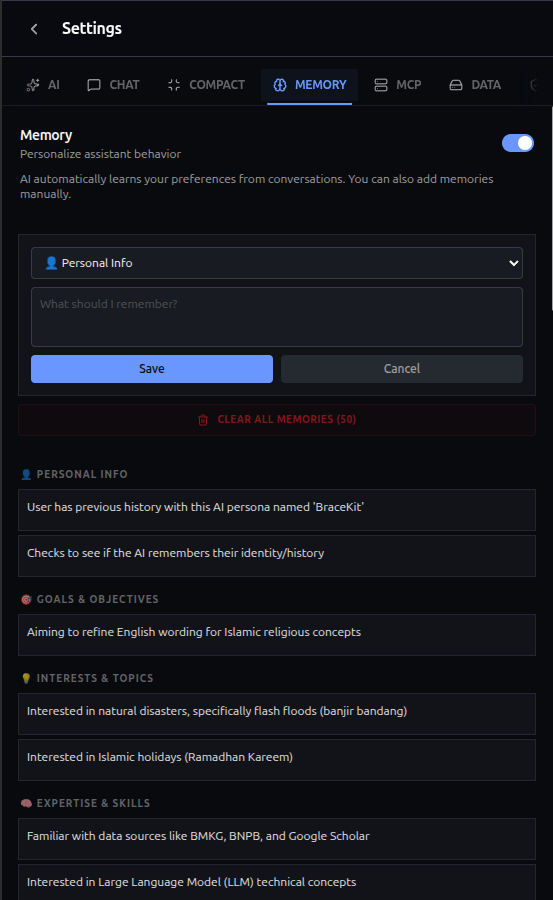
Enable Memory
- Open Settings
- Find Memory section
- Toggle the memory system on
Memory Categories
BraceKit organizes memories into categories:
| Category | Examples |
|---|---|
| Personal | Name, location, job title |
| Goals | Learning objectives, project goals |
| Interests | Hobbies, favorite topics |
| Expertise | Skills, experience level |
| Preferences | Coding style, response format |
| Style | Communication preferences |
| Habits | Work patterns, routines |
| Context | Current projects, tools used |
| Dislikes | Things to avoid |
Managing Memories
Viewing Memories
In Settings → Memory, memories are displayed grouped by category. You can:
- View all stored memories organized by category
- Edit any memory by clicking the pencil icon
- Delete individual memories
Adding Memories Manually
- Click Add Memory
- Select a category from the dropdown
- Enter the information
- Click Save
Manual memories are stored with high confidence and prioritized in selection.
Clearing All Memories
To delete all memories at once:
- Go to Settings → Memory
- Click Clear All Memories
- Confirm the action
How Memories Are Used
Automatic Extraction
After conversations, BraceKit analyzes recent messages to extract new insights about you:
- Analyzes the last 8 messages
- Extracts new, non-duplicate information
- Only stores insights with high confidence (≥0.6)
- Maximum of 100 memories stored
Memory Selection
When starting a conversation:
- Memories are sampled using weighted random selection
- Selection prioritizes confidence and recency
- Up to 15 memories are included per conversation
- Selection is balanced across categories for diversity
Example
Stored Memories:
- You prefer TypeScript over JavaScript
- You work on React projects
- You like concise explanations
Your Message:
How do I fetch data in React?AI Response (with memory context):
Here's how to fetch data in React using TypeScript:

```typescript
// Using useEffect with fetch
useEffect(() => {
  fetch('/api/data')
    .then(res => res.json())
    .then(setData);
}, []);
```

For production, consider using React Query or SWR...
Privacy
Local Storage
All memories are stored locally:
- In Chrome’s extension storage
- Never sent to external servers
- Only you can access them
What Gets Remembered
BraceKit extracts:
- Stated preferences
- Personal information you share
- Goals and interests
- Professional context
What Doesn’t Get Remembered
- Sensitive data (passwords, API keys)
- Temporary information
- Information marked as confidential
Best Practices
Be Explicit
Share preferences clearly:
I prefer functional components over class components.
Please use TypeScript in code examples.
Keep explanations brief.
Correct Mistakes
If the AI remembers something wrong, you can:
- Edit the memory directly in Settings
- Delete the incorrect memory
- Correct it in conversation (the system will update)
Review Periodically
Check Settings → Memory occasionally to:
- Remove outdated information
- Correct errors
- Add important details manually
Troubleshooting
Memories not being extracted
- Ensure memory is enabled
- Conversations need substantive content
- Information must meet confidence threshold (≥0.6)
- Memory limit (100) may be reached
Wrong memories being used
- Edit or delete incorrect memories in Settings
- Correct the AI in conversation to update memories
Too many memories
- Clear old, outdated memories
- The system auto-manages by confidence and recency
Related
- Auto-Compact — Managing long conversations
- Security — Protecting your data
- Configuration — All settings