Chat Interface
Master the BraceKit chat interface with markdown, code blocks, and message actions.
Chat Interface
The BraceKit chat interface is designed for clarity and productivity. Here’s everything you can do.
Message Types
Text Messages
Full markdown rendering with support for:
- Bold, italic, and
inline code [Links](https://example.com)- Lists (ordered and unordered)
- Blockquotes
- Headers
Code Blocks
Code blocks include syntax highlighting and a copy button:
```javascript
function greet(name) {
  return `Hello, ${name}!`;
}
```
Hover over a code block to see:
- Copy button (copies to clipboard)
- Language indicator
Tables
Tables are rendered with proper formatting:
| Column 1 | Column 2 |
|---|---|
| Data 1 | Data 2 |
Table actions (hover to reveal):
- Copy as Markdown
- Copy as CSV
- Download CSV
- Fullscreen view
Mermaid Diagrams
Mermaid diagrams are rendered inline:
```mermaid
graph LR
    A[Start] --> B{Decision}
    B -->|Yes| C[Action 1]
    B -->|No| D[Action 2]
```
Streaming Responses
By default, responses stream token-by-token in real-time:
- Type your message and press Enter
- Watch the response appear character by character
- Markdown renders as it streams
Stop Streaming
To stop a streaming response, click the stop button (square icon) that appears in place of the send button during streaming.
Reasoning / Extended Thinking
For models that support extended thinking (Claude, DeepSeek R1, Gemini thinking, Ollama think mode), BraceKit displays the reasoning process in a collapsible section:
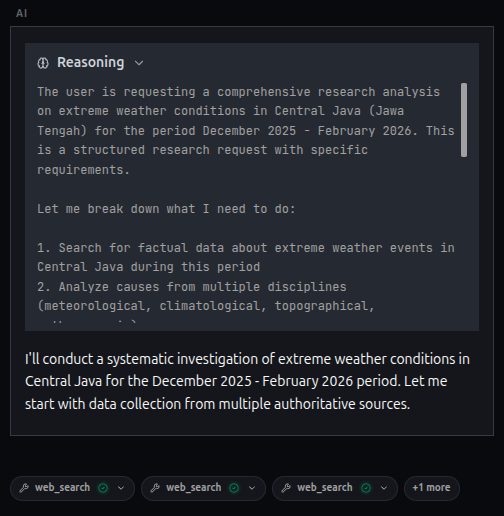
Click the header to expand/collapse the reasoning section.
Enabling Reasoning Mode
- Click the brain icon (🧠) in the toolbar — this opens the Thinking & Reasoning popover
- Toggle Extended thinking on with the switch
- (Optional) Pick an effort level — Minimal / Low / Medium / High / Max (the available levels depend on the provider/model)
- Send your message
- The model will show its thinking process
The effort level maps per provider:
| Provider | Parameter | Levels |
|---|---|---|
| OpenAI (gpt-5.x) | reasoning_effort | minimal / low / medium / high |
| Anthropic (Claude 4.6+, 5.x) | thinking.type: "adaptive" + effort | low / medium / high (max on Opus) |
| Anthropic (Claude ≤4.5) | thinking.type: "enabled" + budget_tokens | level → token budget |
| Gemini 3+ | thinkingConfig.thinkingLevel | minimal / low / medium / high |
| Gemini 2.5 | thinkingConfig.thinkingBudget | level → token budget |
| xAI (Grok 4.x) | reasoning_effort | low / medium / high |
| DeepSeek (V4) | thinking + reasoning_effort | low / medium / high / max |
| Groq (gpt-oss, kimi-k2) | reasoning_effort | minimal / low / medium / high |
| Ollama | think: true | on / off only |
Note: Reasoning only turns on for models whose specs allow it. If you enable thinking on a model that does not support it, BraceKit shows a warning and keeps thinking off. Use Configure here to open Settings → AI and fix the spec (custom providers) or pick a reasoning-capable model.
Compatible endpoints that reject thinking parameters get an automatic retry without them, so the request still succeeds.
Function calling (tools)
The wrench icon in the composer toolbar turns MCP and built-in tools on or off.
Tools only run when the selected model supports them. Image-generation models and any model with Tools turned off in its specs will not send tool calls. Trying to enable the wrench in that case shows a warning with Configure here.
Message Actions
For User Messages
Hover over your messages to see:
| Action | Description |
|---|---|
| Copy | Copy the message content |
| Edit | Modify the message and resubmit |
| Regenerate | Get a different response from this point |
| Branch | Create a new conversation from this point |
When you edit a message:
- The message becomes editable
- Make your changes
- Press Enter to resubmit
- All subsequent messages are removed
- A new response is generated
For Assistant Messages
| Action | Description |
|---|---|
| Copy | Copy the entire response |
| Branch | Create a new conversation from this point |
Quoting Text
- Select any text within a message
- A quote button appears
- Click to add the quote to your input as a markdown blockquote
Conversation Management
Starting a New Chat
Click the + button in the header to start a fresh conversation. Your current conversation is automatically saved.
Conversation History
Click the history icon in the header to:
- View all past conversations
- Search by title or content
- Pin important conversations
- Delete old conversations
- Export as Markdown
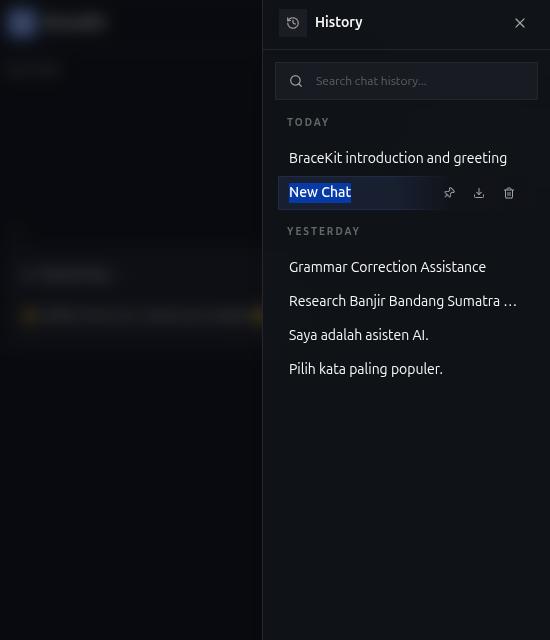
Auto-Generated Titles
After the first exchange, BraceKit automatically generates a title for your conversation based on the content. You can:
- Double-click to rename manually
- Type
/renameto regenerate automatically
Slash Commands
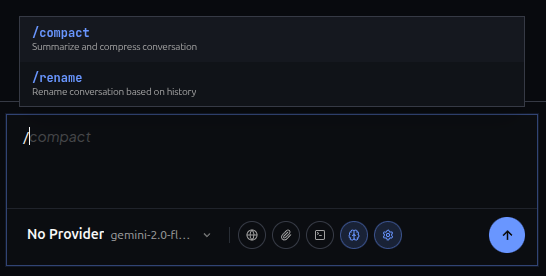
Type / in the input area to see available commands:
| Command | Description |
|---|---|
/compact | Summarize and compress conversation history |
/rename | Generate a new conversation title |
Commands execute immediately when you press Enter.
Context Window Indicator
When auto-compact is enabled and you’re within 15% of the threshold, a warning appears above the input area:
- ≤15% remaining: Gray indicator
- ≤10% remaining: Yellow warning
- ≤5% remaining: Red pulsing warning
Hover over the indicator to see exact token usage.
See Auto-Compact for details.
Tool Calls
When the AI uses tools (MCP or built-in), you’ll see:
Detailed Tool Calls
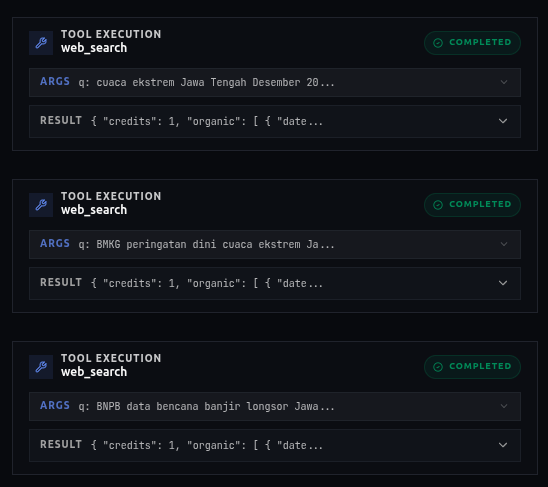
Compacted Tool Calls
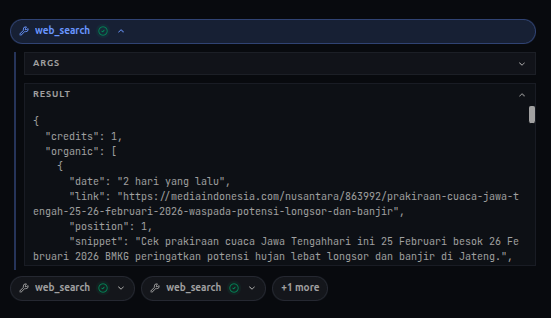
The display format depends on your preferences setting:
- Detailed: Full tool arguments and results
- Compact: Minimal display, just tool name and status
Images in Chat
Viewing Images
When the AI generates an image or you attach one:
- Images appear inline in the conversation
- Click to open in a lightbox
- In lightbox: navigate with arrows, copy, download
Generated Images
Images created by AI (Gemini, xAI) are:
- Saved to local IndexedDB storage
- Available in the Gallery view
- Can be favorited for quick access
Related
- Auto-Compact — Managing context limits
- Image Generation — Creating images
- Branching — Creating conversation branches