Getting Started
First Chat
Send your first message and learn the basics of BraceKit.
Your First Chat
Now that BraceKit is installed, let’s send your first message and explore the interface.
Opening the Sidebar
Click the BraceKit icon in your Chrome toolbar. The sidebar will slide open from the right side of your browser window.
Sidebar Layout
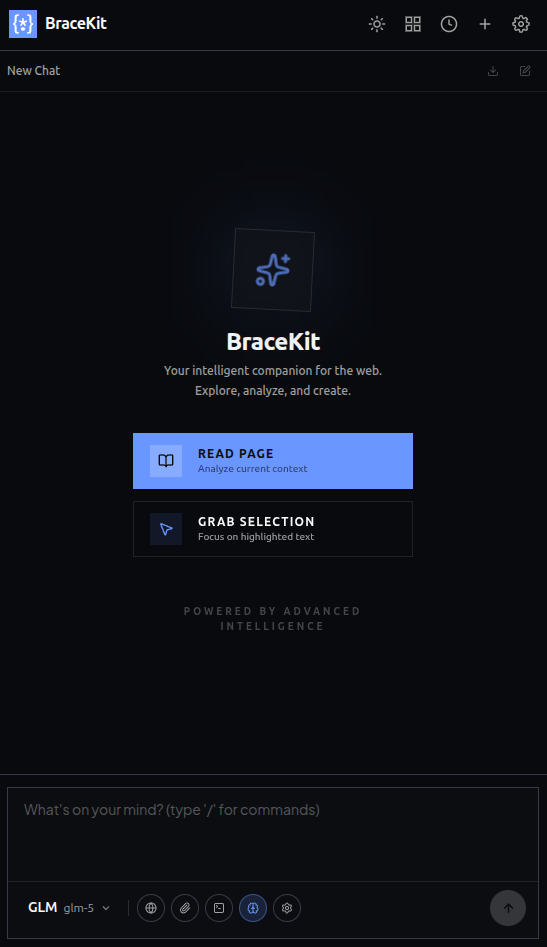
Sending Your First Message
- Select a provider: Click the provider button in the toolbar (e.g., “OpenAI ▾”)
- Choose a model: Select from available models
- Type your message: Click the input area and type
- Send: Press Enter or click the Send button
The AI response will stream in real-time, token by token.
Example Conversation
You: What is async/await in JavaScript?

BraceKit: Async/await is syntactic sugar over JavaScript Promises
that lets you write asynchronous code in a synchronous style...

The `async` keyword marks a function as asynchronous, and `await`
pauses execution until a Promise resolves.

```javascript
async function fetchData() {
  const response = await fetch('/api/data');
  const data = await response.json();
  return data;
}
```
Using Page Context
BraceKit can read the content of your current webpage:
- Navigate to any article or documentation page
- Open the sidebar
- Click the globe icon (🌐) in the toolbar
- The page content is now attached to your message
- Ask questions about the page
You: Summarize the key points of this article

BraceKit: Based on the article you're viewing, here are the key points:

1. The article discusses...
2. It emphasizes...
3. The conclusion suggests...
Working with Selected Text
Select any text on a webpage to ask questions about it:
- Highlight text on any webpage
- Open the sidebar
- The selected text appears as an attachment
- Ask your question
You can also right-click selected text and choose “Send to BraceKit” from the context menu.
The Toolbar
The input toolbar contains quick actions:
| Icon | Action | Description |
|---|---|---|
| 🌐 | Page Context | Attach current page content |
| 📎 | Attach File | Add images, text files, or PDFs |
| 💻 | System Prompt | Edit the system prompt |
| 🧠 | Reasoning Mode | Enable extended thinking (Claude) |
| ⚙️ | Settings | Open settings panel |
Slash Commands
Type / in the input area for quick commands:
| Command | Description |
|---|---|
/compact | Summarize and compress the conversation |
/rename | Auto-generate a conversation title |
Message Actions
Hover over any message to see available actions:
User Messages
- Edit: Modify your message and resubmit
- Quote: Select text to quote in a new message
Assistant Messages
- Copy: Copy the entire response
- Branch: Create a new conversation from this point
- Regenerate: Get a new response
Next Steps
Now that you’ve sent your first message, explore these features:
- Page Context — Deep dive into page reading
- Text Selection — Work with selected text
- Branching — Explore conversation alternatives
- AI Providers — Set up additional providers