Advanced
Gallery View
Browse all generated and attached images across conversations.
Gallery View
The Gallery is your central hub for all images in BraceKit — both generated by AI and attached by you.
Opening the Gallery
Click the grid icon in the header to open the Gallery view.

Image Sources
The Gallery collects images from:
| Source | Description |
|---|---|
| Generated | Images created by AI (Gemini, xAI) |
| Attached | Images you uploaded |
| Markdown | Images rendered from markdown |
Filtering
Use the tabs at the top to filter:
- All Images — Show all images from all sources
- ☆ Favorites — Show only favorited images
Image Actions
View Full Size
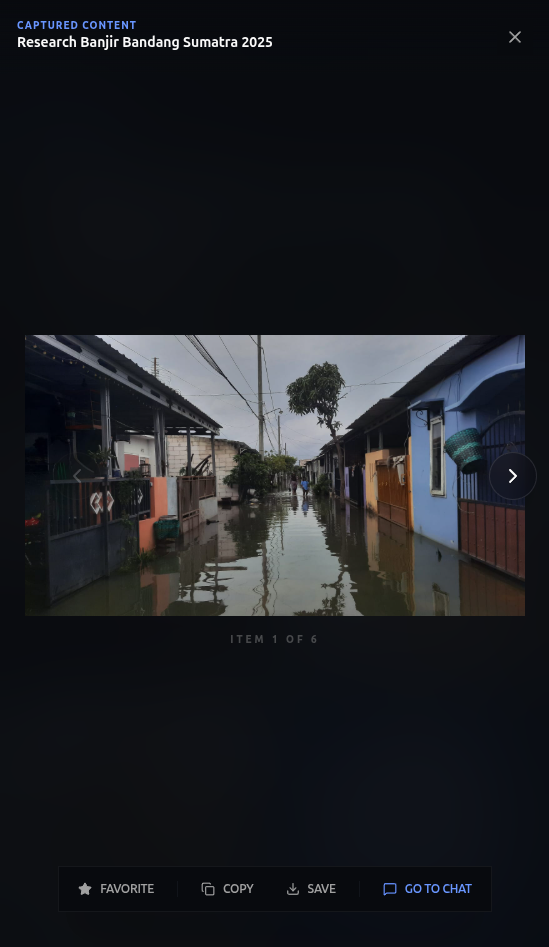
Click any image to open the lightbox:
- Full resolution
- Navigation arrows
- Keyboard shortcuts (← →)
Favorite
Click the star icon to favorite:
- Favorites show a star indicator
- Quickly find important images
- Filter by favorites
Copy
- Open image in lightbox
- Click Copy button
- Image copied to clipboard
Save
- Open image in lightbox
- Click Save button
- Save to your computer
Jump to Conversation
- Open image in lightbox
- Click Go to Chat
- Navigate to the source chat
Lightbox Controls
When viewing an image full-size:
| Control | Action |
|---|---|
| ← → | Navigate images |
| ☆ | Toggle favorite |
| Copy | Copy to clipboard |
| Save | Save to disk |
| Go to Chat | Jump to conversation |
| X or Esc | Close lightbox |
Image Information
In Gallery Grid
Hover over an image to see:
- Conversation title
- Favorite indicator (if favorited)
In Lightbox
When viewing full-size:
- Conversation title (top left)
- Item counter (bottom: “Item X of Y”)
- Available actions
Storage
Where Images Are Stored
Images are stored in:
- IndexedDB — Local browser database
- Never uploaded to external servers
- Persist across sessions
Storage Limits
IndexedDB has practical limits:
- Depends on available disk space
- Browser manages cleanup
- Very large collections may slow down
Managing Storage
To free up space:
- Delete old conversations
- Remove unfavorited images
- Clear browser data (removes all)
Organizing Images
Favorites
Use favorites to mark:
- Best generated images
- Important screenshots
- Reference images
By Conversation
Images are grouped by conversation:
- Click “Go to Chat” to see context
- Delete conversation to remove its images
Tips
Finding Images
- Use favorites for quick access
- Check the conversation title on hover
- Use keyboard arrows in lightbox to browse
Sharing Images
- Open in lightbox
- Copy to clipboard
- Paste in any application
Preserving Images
- Favorite important images
- Download copies for backup
- Don’t rely solely on Gallery storage
Troubleshooting
Images not appearing
- Check if conversation was deleted
- Verify images were generated successfully
- Refresh the Gallery view
Gallery loading slowly
- Large collection of images
- Clear old, unfavorited images
- Check available disk space
Images missing after update
- Storage should persist
- Check browser storage settings
- May need to regenerate
Related
- Image Generation — Create images
- File Attachments — Upload images
- Chat Interface — View images in chat