AI Floating Toolbar
Select any text and get instant AI-powered actions with the floating toolbar. Customize built-in actions and add your own.
AI Floating Toolbar
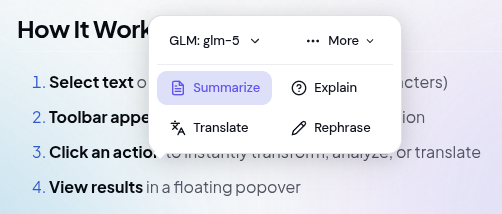
The AI Floating Toolbar is your instant AI assistant that appears right when you need it. Select any text on a webpage and a sleek toolbar pops up with one-click AI actions — no need to open the sidebar or type a prompt.
How It Works
- Select text on any webpage (minimum 10 characters)
- Toolbar appears automatically near your selection
- Click an action to instantly transform, analyze, or translate
- View results in a floating popover
That’s it! No typing, no context switching — just select and act.
Built-in Actions
Toolbar (always visible)
| Action | What it does |
|---|---|
| Summarize | Creates a concise summary of the selected text |
| Explain | Breaks down complex concepts into simple terms |
| Translate | Translates text to your chosen language |
| Rephrase | Rewrites text for better clarity and flow |
More Menu
Click the More button to access additional actions:
Transform
- Simplify — Makes complex text easier to understand
- Expand — Adds more detail and context to brief text
Change Tone
- Make Formal — Converts casual text to professional language
- Make Casual — Makes formal text more conversational
Fix & Improve
- Fix Grammar — Corrects grammar, spelling, and punctuation errors
All built-in actions can be renamed, repositioned, or disabled — see Customizing Actions below.
Using the Toolbar
Basic Usage
- Highlight any text on a webpage
- A small BraceKit icon appears near your selection
- Click the icon to expand the full toolbar
- Click any action to execute it
Translation
When you click Translate:
- A language dropdown appears
- Select your target language (12 languages available)
- Click Go to translate
Supported languages: English, Spanish, French, German, Chinese, Japanese, Korean, Indonesian, Portuguese, Russian, Arabic, Hindi
Changing AI Model
You can switch between AI models directly from the toolbar:
- Click the model indicator (shows current provider/model)
- Select from available providers
- Choose a model from the dropdown
- Your selection is saved for future use
Note: Only providers with configured API keys appear in the selector.
Working with Results
After executing an action, results appear in a floating popover:
Available Actions
| Button | Function |
|---|---|
| Regenerate | Get a different result for the same action |
| Copy | Copy the result to your clipboard |
| Apply | Replace the original text (only in editable fields) |
| Close | Dismiss the popover |
Drag to Reposition
The results popover can be dragged:
- Click and hold the header area
- Drag to any position on the page
- Release to drop
The popover automatically stays within viewport boundaries.
Applying Results
When you select text in an editable area (input field, textarea, or contenteditable element), the Apply button appears. Click it to replace your original selection with the AI-generated result.
Perfect for:
- Editing emails
- Improving document text
- Fixing grammar in forms
Customizing Actions
Open Settings → Chat → Text Selection AI to fully customize which actions appear in the toolbar and how they behave.
Managing Built-in Actions
Every built-in action can be customized:
| What you can do | How |
|---|---|
| Enable / Disable | Toggle the switch on the right of each action row |
| Rename label | Click the pencil icon, edit the label, click Save |
| Change position | In edit mode, switch between Toolbar and More menu |
| Change category | In edit mode, pick a different category for grouping |
To undo all customizations on a built-in action, click the ↺ reset icon that appears on hover.
Adding Custom Actions
You can create your own AI actions with a custom prompt:
- Scroll to Custom Actions in the settings panel
- Click the + button
- Fill in the form:
- Label — the button text shown in the toolbar (e.g. ELI5, Roast, Bullet points)
- Position — Toolbar — always visible or More — in dropdown menu
- Category — groups your action in the More menu (optional)
- Prompt Template — your full prompt; use
{{text}}as the placeholder for the selected text
- Click Add Action
Example prompt templates:
Explain the following text like I'm 5 years old:

{{text}}
Convert the following text into a bulleted list of key points. Return only the list:
{{text}}Roast the following text in a humorous way:
{{text}}Editing and Removing Custom Actions
- Expand prompt — click the chevron (▾) to preview the full prompt template
- Edit — click the pencil icon to modify label, prompt, position, or category
- Delete — click the × icon to remove the action permanently
Changes take effect the next time you select text on a page (the toolbar reloads its action list on each use).
Tips & Tricks
Get Better Results
-
Select complete sentences — AI works best with full thoughts, not fragments
-
Include context — When explaining code, select enough surrounding code for context
-
Use specific actions — “Simplify” works better than “Rephrase” for making text easier to read
-
Regenerate if needed — Not happy with the result? Click Regenerate for a fresh take
-
Write precise custom prompts — End your prompt template with
Return ONLY the result, nothing else.to get clean output without meta-commentary
Productivity Shortcuts
- Click outside the toolbar to dismiss it quickly
- Press Escape to close the results popover
- Minimum selection is 10 characters — adjust in settings if needed
Best Use Cases
For Research:
- Summarize long articles instantly
- Translate foreign language sources
- Explain technical documentation
For Writing:
- Rephrase awkward sentences
- Fix grammar and typos
- Adjust tone for your audience
For Learning:
- Explain complex concepts
- Simplify difficult passages
- Translate for language learning
Settings
Configure the floating toolbar in Settings → Chat:
| Setting | Description | Default |
|---|---|---|
| Enable Toolbar | Turn the floating toolbar on/off | On |
| Minimum Selection Length | Minimum characters to trigger toolbar | 10 |
| Built-in Actions | Enable/disable, rename, or reposition each built-in action | — |
| Custom Actions | Add, edit, or remove your own AI actions | — |
Troubleshooting
Toolbar Doesn’t Appear
- Selection too short — Select at least 10 characters (adjustable in settings)
- Feature disabled — Check Settings → Chat → Text Selection AI
- Incompatible page — Some pages (Chrome Web Store, extension pages) don’t allow content scripts
- Code blocks excluded — Toolbar intentionally doesn’t appear inside code blocks
Custom Action Not Appearing
- Check position setting — Make sure the action is set to Toolbar (not More menu) if you expect it in the main grid
- Reload the page — Action list is loaded fresh on each selection; a page reload may be needed after the first time you add an action
- Disabled accidentally — Built-in actions can be toggled off; check the settings panel
Results Not Showing
- API key missing — Ensure your provider has a configured API key
- Rate limited — Wait 1 second between requests
- Network error — Check your internet connection
Wrong Theme (Too Light/Dark)
The toolbar automatically detects the page theme. If it looks wrong:
- The page may use non-standard theming
- Try refreshing the page
Related
- Text Selection — Send selected text to the sidebar chat
- Chat Interface — Full conversation with AI
- AI Providers — Configure API keys and models